Processor (CPU)
The processor executes program instructions and processes data.
More on Wikipedia
From the power button to the Linux desktop
A computer is made up of hardware and software. Hardware means the physical parts, such as the processor, RAM, SSD, motherboard and graphics card. Software means the operating system, applications and instructions that tell the computer what to do.
Hardware is the body of the computer, while software provides the instructions. A Linux distribution connects applications with the hardware and helps all of these parts work together.
The images below show the main parts of a desktop and laptop computer. You do not need to know every detail at first – it is enough to understand what the processor, RAM, storage, motherboard and graphics card are for.
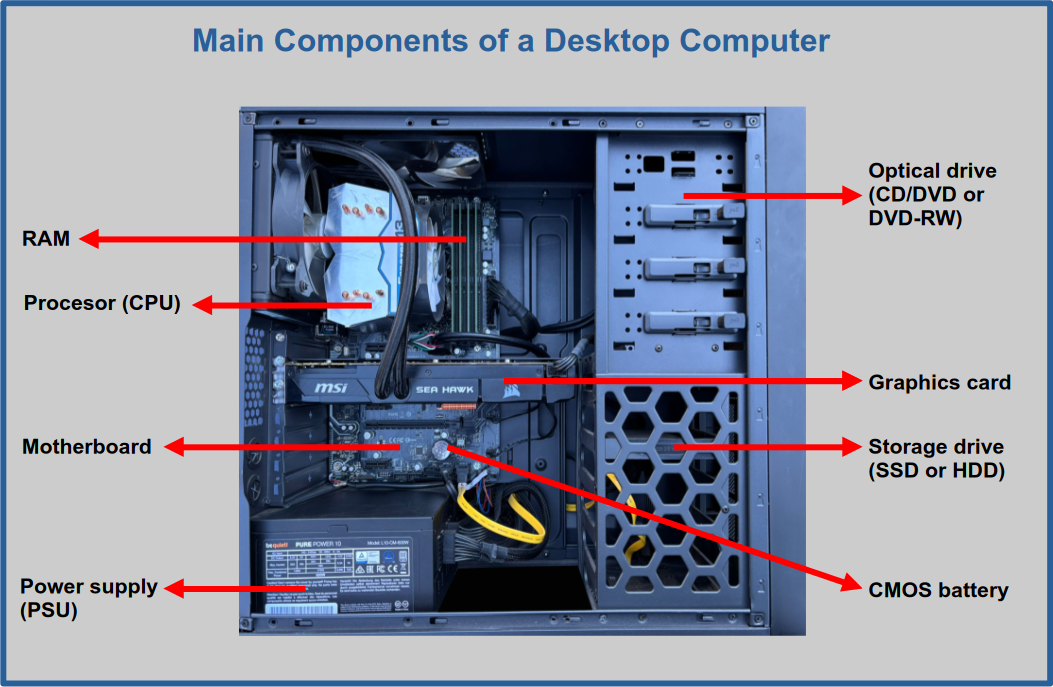
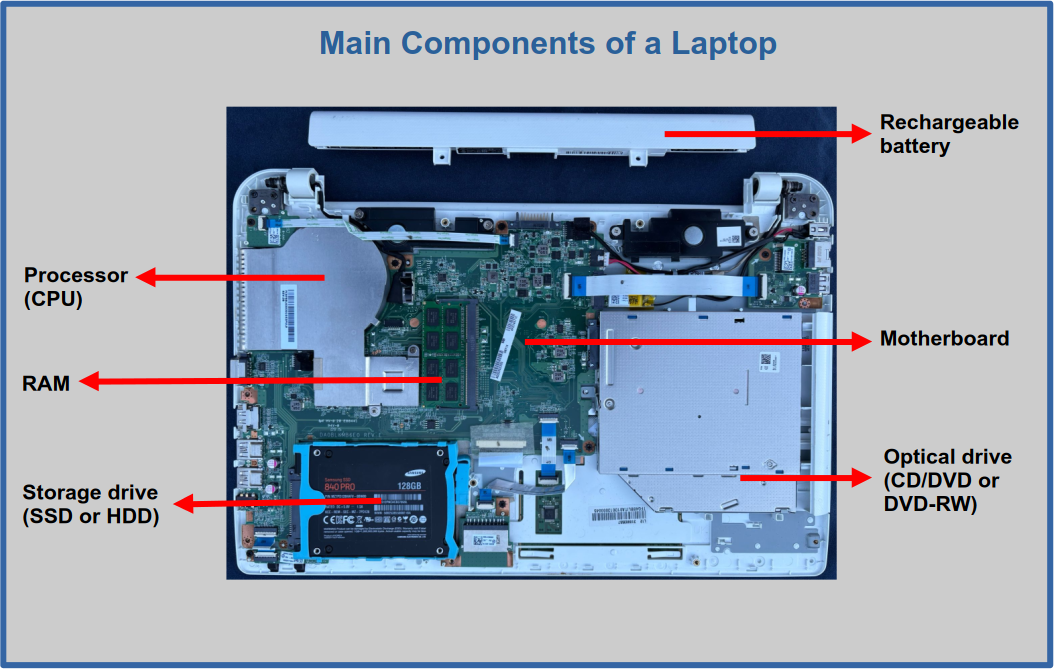
Applications and files are stored long-term on the SSD or HDD. When you use them, the data that is currently needed is loaded into RAM, where the processor can work with it quickly. RAM is therefore the working space, while SSD and HDD are the storage space.
A lot happens in just a few seconds after you press the power button. For a beginner, the process can be pictured like this:
Power button → UEFI/BIOS → GRUB or another boot loader → Linux kernel → system services → login → desktop.
You can think of the processor as an extremely fast worker that follows instructions. It does not think like a person. Instead, it constantly performs huge numbers of simple operations: calculate a value, compare data, move data or read the next instruction.
Very simply, its work can be described as: fetch an instruction → understand it → execute it → move to the next one. This process happens extremely quickly.
The processor needs RAM for quickly accessible data, storage for long-term data, a graphics system for displaying images and an operating system that coordinates everything.
RAM is the space the computer uses while it is running. When you open an application, the parts of the program and data that are needed are loaded from the SSD or HDD into RAM. The processor can then access them much faster than if it had to read everything directly from storage.
More open applications, browser tabs and large files usually mean more RAM is being used. If the system starts running short of RAM, the computer may become slower.
RAM is volatile memory. It needs electrical power to retain its contents. When the computer is turned off, the contents of RAM do not remain permanently stored in normal use. That is why a document must be saved to an SSD or HDD if you want to use it after the next restart.
SSDs and HDDs store the operating system, applications, documents, photos and other files even when the computer is turned off.
For the operating system and everyday use, an SSD is usually the better choice today. An HDD can still be useful for large collections of data or additional backups.
Suppose you click the Firefox icon. In a very simplified form, this is what happens:
SSD/HDD → RAM ↔ CPU → GPU → display.
When you save a file, the data is written back to long-term storage.
Software means the programs and systems that tell the computer what to do. Without software, a computer would only be a collection of electronic parts.
An application usually does not communicate directly with every device in the computer. There are several layers between the application and the hardware.
Application → operating system → Linux kernel → driver → hardware.
This is why the operating system matters so much: it coordinates access to the processor, RAM, storage, graphics, sound, networking and other hardware in an organised way.
When you choose “Shut down”, the operating system first tries to close applications safely, write the necessary data to storage and stop system services. Only then does the computer switch off the power.
Data that has been correctly saved to an SSD or HDD remains there. The working contents of RAM do not remain permanently stored without power.
A sudden loss of power can interrupt data being written to storage. Whenever possible, shut the computer down through the operating system.
These are short explanations of terms that beginners often encounter when learning about Linux, installing a system or discussing computer hardware.
The processor executes program instructions and processes data.
More on WikipediaRAM is temporary working memory for data and programs that are currently in use.
More on WikipediaAn SSD is a fast storage drive with no moving mechanical parts.
More on WikipediaAn HDD is a traditional hard disk drive with magnetic platters and mechanical parts.
More on WikipediaA GPU helps process and display graphics, video and games.
More on WikipediaThe motherboard connects the processor, RAM, storage and other components.
More on WikipediaBIOS or UEFI is firmware stored in special memory on the motherboard. It starts when the computer is powered on and prepares the hardware for booting the system.
More on WikipediaGRUB is a commonly used Linux boot loader. It can also allow you to choose between several installed operating systems.
GNU GRUB official websiteA driver allows the operating system to communicate with particular hardware.
A file system defines how files and folders are organised and stored on a drive.
A partition is a logically separated part of a storage drive that an operating system can use as a distinct area.
A backup is a separate copy of important data.
More on WikipediaA server is a computer or system that provides services to other devices, such as websites or files.
More on WikipediaA NAS is network storage that can be accessed by several computers or phones on a network.
More on WikipediaA virtual machine lets you run another operating system inside your current one without changing the main system.
More on WikipediaA backup is a copy of important data that you can use if a drive fails, files are deleted by mistake or another problem occurs.
A useful rule is to keep 3 copies of your data, on 2 different types of media, with 1 copy stored in another location.
A computer is not one single part doing everything by itself. It is a system of components working together: the processor executes instructions, RAM provides temporary working space, SSD or HDD stores data, and the operating system coordinates the whole process.
Once you understand this basic picture, Linux, system installation, drivers, partitions, upgrades and troubleshooting become much easier to understand.